

Why the clock is running
Passkeys have been a point of contention, and I feel strongly about them. Almost as strongly as Jan Bakker, though I think he's got me beat.
I remember working as an ops tech, going from office to office, and seeing what happened when people changed their passwords. They wrote them on sticky notes. Someone would tell me they used a password like Summer2019 and changed the season and year so they could remember it. Those predictable patterns make passwords easier for attackers to guess.
Passwords have always felt archaic to me. When FIDO2 offered an alternative built around the relying party ID and verification, I was all over it. FIDO2 and certificate-based authentication weren't new, but the term passkey confused people. I remember arguments with my own staff about synced passkeys, Bluetooth proximity and device-bound attestation. Once you understand the protocol and what it does, those things become clearer. It's our job as security and technology professionals to explain them.
Passkeys aren't perfect. I'll still die on the hill that they beat passwords and weak methods like SMS. A passkey does not make a compromised device safe, and the way you recover an account still matters.
When someone asks me how to get started, my answer is to start with yourself. Drink your own champagne. Your internal team will find the gaps before your clients do.
That's how I learned the chicken-and-egg problem. Require phishing-resistant authentication for admins. Good. Now how does an admin register a passkey? Plan a separate registration policy and a custom bootstrap strength that permits a Temporary Access Pass. Issue a TAP and test registration before enforcing the rest. Then you might find Authenticator registration blocked by an app protection or device policy. Review the affected policy and the Credential Registration resource; an exclusion may be needed. Test the combined policies rather than assuming one change fixes every flow.
I started by creating groups around personas. My Entra baseline on GitHub goes deeper into that process. I began with separate admin accounts and highly privileged roles. You do separate your daily account from your admin account, right? Get the authentication methods and passkey profiles in place, then build policies that match the people and resources. Licensing will affect which controls you can use.
I used PIM and required phishing-resistant authentication for elevated roles, Azure access and sensitive SharePoint data. Then I found the gaps: servers, RADIUS and other technologies that didn't work with the same passkey flow. Some needed a different authentication path. Others needed a documented workaround while we planned a replacement.
I moved the office over gradually, learned from the mistakes and took a tested process to clients. That's the playbook behind this guide. Passkeys have evolved, and people like Jan and Nate have shared work that helped. I want to collect those lessons here so you can find your own gaps sooner.
I've written about this a lot, but I've also lived these experiences with my own staff. I had network engineers upset with me when I rolled this out, and sysadmins irritated that they lost permissions and now needed PIM with phishing-resistant authentication. I've heard it all and worked through it.
I've worked with nonprofits who said it wasn't possible on their budget. The more we secured, the less their volunteers wanted to come back. There is always a balance between security and usability. My favorite moment is when the two intersect and people get that “aha, this is way better” feeling. It's the same feeling they had the first time they used Touch ID or Face ID to unlock a device. It's secure, but it's convenient.
Sometimes you have to meet people where they are. My network engineer had a good reason for pushing back: he was on Android, and the profiles were causing all kinds of issues. I got him an inexpensive YubiKey FIDO2 security key, and he used it everywhere. He began to love the experience. I did the same for the nonprofit. Yes, there was a small cost, but the cost of a compromise far outweighed the cost of a key.
For my sysadmin, I had to explain and show him: I'm doing the same thing you are. Guess what? We have access to critical systems. I'm not having a potential compromise hanging over my head for the sake of ease of use. When pushback is required, push back. When compromise is needed, find the middle ground.
Why now
Microsoft is making passkeys the default MFA experience for users who rely on SMS or voice. Passkey profiles and synced passkeys went GA in the first half of 2026, and existing configurations were migrated to a Default profile. Check what that profile allows before assuming it matches your admin requirements.
Passkeys are phishing-resistant because the sign-in is bound to the legitimate site or application. That helps stop an attacker collecting a credential through a lookalike sign-in page, but it does not stop an attacker using an already stolen session.
Nate Hutchinson's passkey rollout guide is a useful companion to this one. His discussion of profile choices, legacy access and weaker fallback methods helped shape the decisions covered below.
| Date | What changed | Source |
|---|---|---|
| Mar 2026 | Passkey profiles and synced passkeys GA (Worldwide, GCC) for tenants with Passkeys (FIDO2) enabled | MC1221452 |
| May to Jun 2026 | Existing config auto-migrated into the Default passkey profile (Worldwide, GCC; GCC High and DoD follow in Feb 2027). Attestation on means device-bound only; attestation off means device-bound and synced | MC1221452 |
| 1 Sep 2026 | Users enabled for SMS or voice are auto-enabled for passkeys and prompted at next MFA sign-in (public cloud) | Microsoft Security Blog |
| Nov 2026 to Jan 2027 | Passkey allowed as a user's first sign-in method (synced, Entra passkeys on Windows, FIDO2 keys). Authenticator passkeys follow in phase 2 | MC1450133 |
| 1 Feb 2027 | Microsoft-provided SMS and voice retirement begins for most users, phased per tenant. Keeping SMS or voice means bringing your own telecom provider | Microsoft Security Blog, MC1540327 |
| 1 Jul 2027 | Retirement begins for Global Administrators and external users | MC1540327 |
Inventory every account before you touch a policy
You cannot pick profiles until you know who is in the tenant and what they authenticate with today. Pull the registration state for every user, then sort them into buckets. The buckets become your groups, and the groups become your waves.
# Microsoft Graph PowerShell: who has what registered
Connect-MgGraph -Scopes "AuditLog.Read.All","UserAuthenticationMethod.Read.All"
Get-MgReportAuthenticationMethodUserRegistrationDetail -All |
  Select-Object UserPrincipalName, IsAdmin, IsPasswordlessCapable,
         IsMfaRegistered, @{Name="MethodsRegistered";Expression={$_.MethodsRegistered -join ";"}},
         UserType |
  Export-Csv .\auth-inventory.csv -NoTypeInformation
The registration report is a starting point, not a complete account inventory. Reconcile it with your user directory, PIM assignments and sign-in logs; a registered method does not prove that a user has used it or that a particular sign-in environment supports it.
| Bucket | How to find them | Passkey path |
|---|---|---|
| Privileged admins | IsAdmin = true, PIM eligible and active assignments | Device-bound, attested. Wave 1 |
| High-risk targets | C-suite, finance, HR, exec assistants, anyone in recent phishing incidents | Device-bound. Wave 2 |
| Standard users | Everyone else with a mailbox and a phone | Synced or device-bound. Wave 3 |
| SMS / voice only | Review MethodsRegistered for phone methods and confirm which are usable for MFA | Priority comms. Microsoft-provided SMS and voice retirement starts 1 Feb 2027 |
| Guests (B2B) | UserType = Guest, split internal vs external | Now in scope. Rolling out by default to guests already targeted by your passkey policy. Decide before it reaches them (see below) |
| Break-glass | Your two emergency access accounts | FIDO2 security keys, stored separately |
| Shared and service | Shared mailboxes, kiosk, frontline shared devices, service accounts | Separate design. Workload identities do not use passkeys |
| Guest type | What it is | B2B passkeys |
|---|---|---|
| Internal guest | Local account in your tenant with UserType = Guest, credentials held by you | Rolling out late Oct to late Nov 2026, including Authenticator passkeys |
| External guest | B2B collaboration user signing in with their home tenant or social identity; you hold only the guest object | Date not announced. No Authenticator passkeys |
Two profiles: synced vs device-bound
Passkey profiles let you define configurations and target them at groups. My default is attested, device-bound passkeys for all users. Synced passkeys are available only when I intentionally add someone to the group assigned my separate synced profile. That follows the device-bound-first approach Nate describes. The Profile A and Profile B example later in this section is a different option, not my configuration.
My portal shows support for up to 10 profiles, while Microsoft's documentation currently says three, including the Default. Check the limit in your tenant before planning around either number.
How I configured mine
In the Entra admin center, go to Entra ID > Authentication methods > Policies > Passkey (FIDO2), then open Configure. I have self-service setup enabled so users can register through Security info. That setting applies to the policy, not an individual profile.
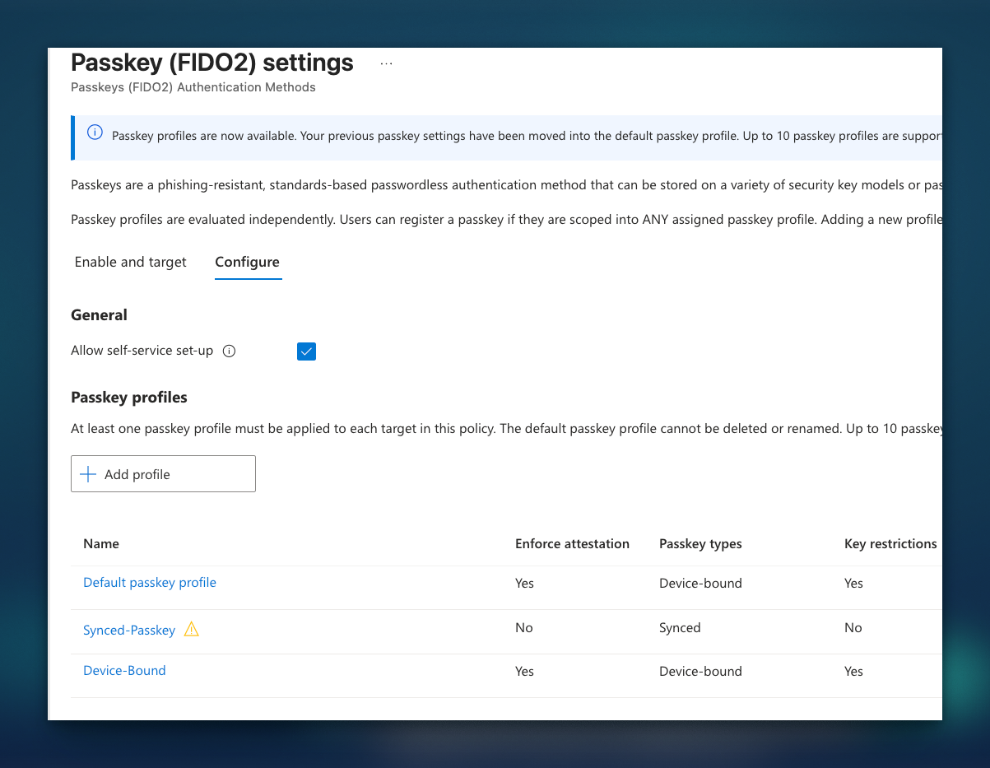
My Default passkey profile and Device-Bound profile both show attestation enabled, device-bound passkeys and key restrictions enabled. The screenshot does not show the actual allowed AAGUIDs, so open each profile and review its list. My Synced-Passkey profile allows synced passkeys, with attestation and key restrictions off. The warning icon is visible, but check the portal's warning text before assuming what it means.
To reproduce the design, use Add profile on the Configure tab, choose the passkey type, set attestation and key restrictions for your requirements, then save. For an attested device-bound profile, select approved authenticator AAGUIDs after checking vendor support. For a synced profile, disable attestation and select Synced. Test registration with the actual providers and devices you intend to support.
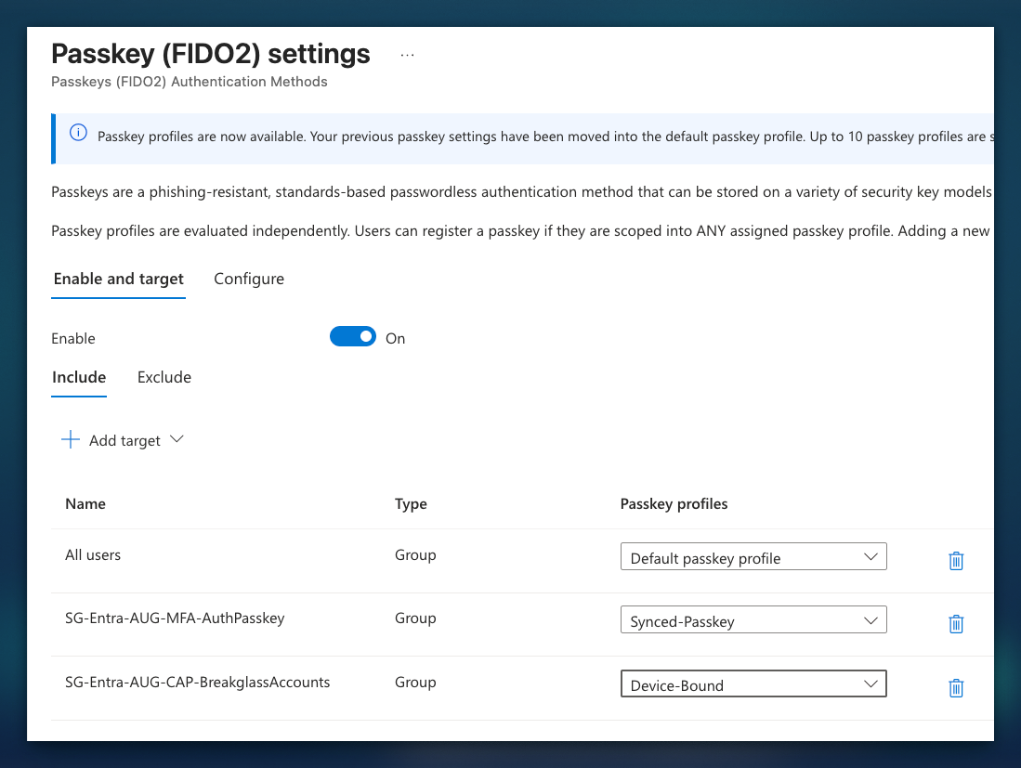
Under Enable and target, I enabled the method and assigned the device-bound Default profile to All users. Users must be intentionally added to my SG-Entra-AUG-MFA-AuthPasskey group to receive Synced-Passkey as well. My SG-Entra-AUG-CAP-BreakglassAccounts group gets the separate Device-Bound profile. Use Add target to add a group and select its profile, then save and test with representative users.
An alternative for standard users
The following Profile A and Profile B design is an alternative, not a description of the synced-only profile shown in my screenshot. Profile B allows both device-bound and synced passkeys for standard users.
Device-bound, attested
For admins, privileged roles and high-risk targets. The private key never leaves the device or key.
- Enforce attestation: Yes
- Passkey types: Device-bound
- Key restrictions: Allow list with Microsoft Authenticator AAGUIDs plus your approved FIDO2 key models
- Methods: Authenticator passkey or FIDO2 security key
Device-bound + synced
For standard users. Lets people use the passkey provider already on their phone, so adoption is faster and lost-phone tickets drop.
- Enforce attestation: No (synced passkeys cannot attest)
- Passkey types: Device-bound and Synced
- Key restrictions: optional, see the warning below
- Methods: Apple Passwords, Google Password Manager, third-party managers, Authenticator, keys
Device-bound first or a broader synced option
My configuration follows Nate's device-bound-first approach: the default applies to everyone, and synced passkeys require deliberate membership in the synced group. The Profile A and B example above is an alternative that allows synced passkeys more broadly for standard users. Choose the approach that fits your requirements, with a tested recovery process and a clear owner for exceptions.
Both designs depend on profile overlap. Profiles combine as an OR, so a user in the device-bound and synced groups can register a method allowed by either. A standard phishing-resistant authentication strength accepts both: it does not select device-bound over synced. If device-bound is required, make sure the user's effective passkey profiles do not also allow synced passkeys, and test registration and sign-in with both types. With attestation off, an AAGUID allow list cannot prove that the claimed provider or key type is genuine.
For synced passkeys, review the security and recovery of the provider account as well as the Entra account. A synced passkey may be available on more than one device, depending on the provider. For privileged users, I would keep the attested device-bound profile and test its enforcement rather than relying on an exception group alone.
Can you lock synced passkeys to one provider?
Partly. You can add AAGUIDs for iCloud Keychain, Google Password Manager or 1Password to an allow or block list, but Microsoft is explicit that with attestation disabled, AAGUID lists are a policy guide, not a strict security control. The AAGUID is self-reported by an unattested authenticator. Treat a synced allow list as steering for honest users, not as a boundary. If the provider genuinely matters for a group, that group belongs in Profile A.
| Synced provider | Minimum platform | Status |
|---|---|---|
| Apple Passwords (iCloud Keychain) | macOS 13+, iOS 16+ | Supported |
| Google Password Manager | Android 9+ (not Samsung devices), Chrome on Windows / macOS / iOS 17+ | Supported |
| 1Password, Bitwarden, other providers | Browser extension on Windows / macOS, app on iOS 17+ or Android 14+ | Supported |
| Microsoft Edge / Microsoft Password Manager | Work-account passkey sync announced for June 2026; not in Microsoft's Entra provider table | Test first |
Where Windows Hello and Platform SSO fit
Windows Hello for Business is a device-bound credential that can satisfy the Phishing-resistant MFA strength. Passkey profiles do not govern it: plan its own authentication method and Windows Hello for Business device policy, including Intune or Group Policy settings. Platform SSO outcomes depend on its configuration and the claims presented: test the actual sign-in and Conditional Access result rather than counting every enrolled Mac as complete. Windows Hello for Business remains Microsoft's recommended method on supported Entra joined or registered PCs.
Plan the first sign-in on a new Windows device too. Microsoft's provisioning flows can start with a password followed by MFA before a Windows Hello for Business credential exists. A TAP can bootstrap passwordless setup when the applicable policies allow it. Test new-joiner and replacement-device enrollment before enforcing passkey-only grants.
For hybrid users accessing on-premises resources, Microsoft recommends cloud Kerberos trust over key trust, and prefers it when certificate authentication is not needed. It does not require certificate deployment for this trust model. Entra issues a partial Kerberos ticket-granting ticket and a domain controller completes it for on-premises access. Microsoft explains the flow for Entra joined and hybrid joined devices. Check the Windows Server 2016 or later domain controller versions, updates and other prerequisites in Microsoft's deployment guide. RDP and certificate scenarios still need their own design, covered in section 08.
Entra passkey on Windows is a separate thing: a device-bound passkey stored in the local Windows Hello container, aimed at devices that are not joined or registered. It does not sign the user in to Windows, registration fails if a Windows Hello for Business credential already exists for that account, and its profile cannot enforce attestation. That last point means it cannot live in Profile A. If you want it, plan a separate profile with the Windows Hello AAGUIDs on an allow list and check the profile limit in your tenant.
Start with authentication methods and groups
Build the groups before the profiles, and the profiles before Conditional Access. The proposed group names below follow my SG-Entra-AUG convention and illustrate the alternative Profile A and B design from section 03; they are examples, not a list of my existing groups. In my own configuration, the Default is device-bound for all users and the synced group is assigned intentionally. Review exclusions carefully: excluding someone who still needs passkeys can block registration and sign-in with existing passkeys, while Microsoft's SMS and voice automatic enablement may affect eligible users separately.
| Group | Profile | Wave |
|---|---|---|
| SG-Entra-AUG-MFA-Passkey-Pilot-IT-A and SG-Entra-AUG-MFA-Passkey-Pilot-IT-B | Separate pilot groups for Profiles A and B | 0 |
| SG-Entra-AUG-MFA-Passkey-Privileged | A: device-bound, attested | 1 |
| SG-Entra-AUG-MFA-Passkey-HighRisk | A: device-bound, attested | 2 |
| SG-Entra-AUG-MFA-Passkey-Users-Pilot then SG-Entra-AUG-MFA-Passkey-Users | B: device-bound and synced | 3 |
| SG-Entra-AUG-CAP-Passkey-Exclusions | Shared Conditional Access plan exclusion for approved exceptions; not a password enablement control | Reviewed throughout rollout |
A user in several profiles passes if their passkey satisfies at least one of them. An admin who is also in SG-Entra-AUG-MFA-Passkey-Users can register and use a synced passkey through Profile B. Keep users who require device-bound passkeys out of every synced-enabled profile, including the Default. A phishing-resistant strength does not fix that overlap.
Separate rollout groups from exceptions
Use the wave groups to decide when each rule applies. Keep SG-Entra-AUG-CAP-Passkey-Exclusions for approved exceptions and urgent rollback, not as the normal way to hold every future wave out of scope. The shared plan exclusion applies to every rule, including the final All users rule. Give each exception an owner, a reason, compensating controls and a review date.
When the All users rule is enabled, users outside the plan exclusions come into scope even if they missed a wave group. An empty exclusion group does not disable passwords or prove that every sign-in path is covered. Review other policies, guests and legacy authentication separately.
An empty group does not make an Active Directory password unusable on-premises. Passkeys and an Entra Conditional Access policy do not by themselves disable AD password authentication for domain sign-ins, Kerberos or NTLM access to file shares and legacy apps. Assess controls such as requiring a smart card for interactive logon or a separately planned password-randomisation project, with testing and recovery for the affected accounts and services.

// Successful sign-ins with a password authentication step
SigninLogs
| where TimeGenerated > ago(7d) and ResultType == 0
| mv-expand AD = todynamic(AuthenticationDetails)
| where tostring(AD.authenticationMethod) == "Password"
| summarize PasswordSignIns = count(), LastSeen = max(TimeGenerated)
          by UserPrincipalName
| order by PasswordSignIns desc
Compare the results with the wave and exception groups and the Conditional Access results. This query does not check membership or prove a policy gap: a sign-in may include a password step and also satisfy a required strength.
- Opt in to passkey profiles (one-way) and set Allow self-service set up = Yes. It is global, and No stops all Security info registration
- Enable Temporary Access Pass and set the policy before Wave 0
- Check the registration campaign. Microsoft-managed campaigns now prompt for passkeys during MFA registration; set it to Enabled or Disabled if you want to control timing yourself
- Check Authentication methods > Settings > System-preferred authentication, including group exclusions; Microsoft managed is the default and covers first and second factors. Review Microsoft's current authentication method order
- Remember the policy has a 20 KB size limit if you add many AAGUIDs
- Check licensing: passkey registration is free in every Entra edition, Conditional Access and account recovery need Entra ID P1, PIM and risk-based policies need P2
Rollout waves in a Conditional Access policy plan
Start with IT and privileged accounts, then move through higher-risk users and the rest of the organisation. Build a Conditional Access policy plan for the rollout. Policy plans are in preview, so check availability and your organisation's preview requirements first. If you cannot use them, apply the same exclusions and wave controls to standalone policies and audit them individually.
In my plan, SG-Entra-AUG-CAP-BreakglassAccounts and SG-Entra-AUG-CAP-Passkey-Exclusions are shared exclusions. Every rule inherits both. A rule cannot override a plan-level exclusion; adding a user to the exception group can remove them from all rules in this plan once group membership and policy changes take effect. Verify the effective result in sign-in logs. This does not exclude them from other plans or standalone policies. Protect and monitor membership, and keep emergency access accounts secured and tested separately.
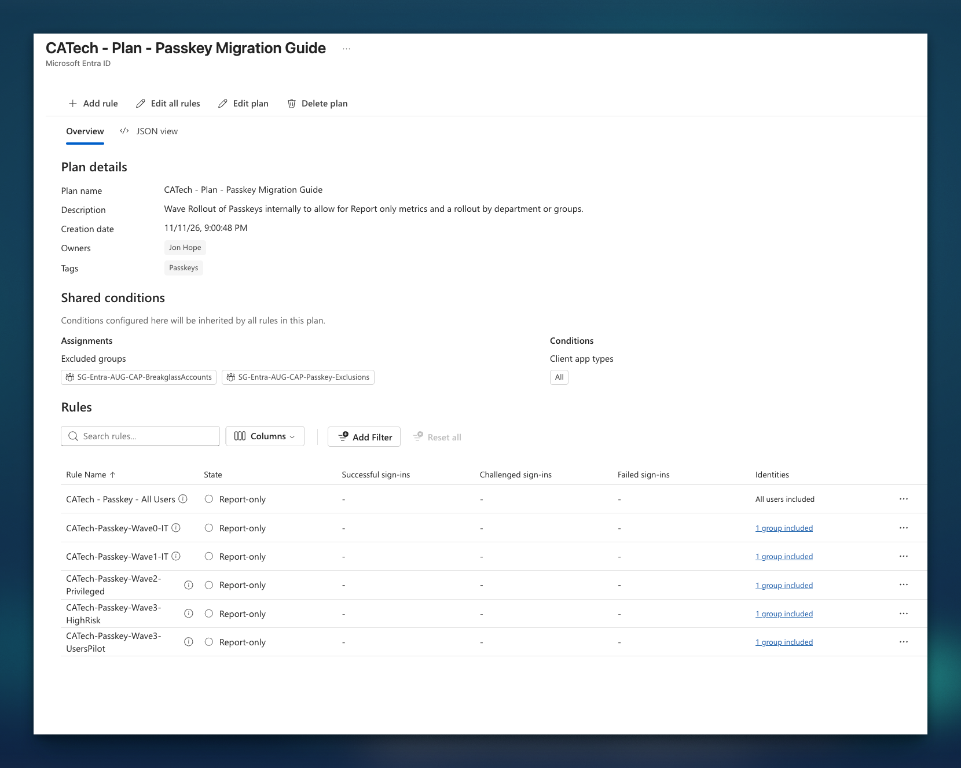
Leave shared user inclusions unset for this design. Add each wave group on its own rule, then add a final rule targeting All users and the intended resources at the rule level. The screenshot shows the final rule in report-only alongside the wave rules: leave it there until the waves and remaining gaps are ready. Check guest scope explicitly; All users can include external users.
IT pilot
Test supported operating systems, including Android work profiles and representative devices.
Report-only firstIT and privileged roles
Expand the IT group, then test admins, PIM-eligible users and Azure owners.
Device-bound profileHigh-risk and user pilots
Include finance, HR and other high-risk users, then pilot a department.
Check effective profilesAll users
Catch users missed by wave membership after the wider rollout is ready.
Review exclusionsThese are separate rules, not a requirement that every group goes live on a fixed date. The device-bound default remains in place for everyone in my design; only deliberately approved users receive the synced profile. Ensure wave membership does not accidentally change those profile assignments.
One rule per wave, at least a week in report-only
Run the next wave on the same weekly cycle, adjusting for readiness rather than enforcing by calendar. Review the All users rule's report-only results across the tenant, including accounts not in a wave. When ready, enable it to cover the intended remaining users and resources. Keep necessary exceptions in the shared exclusion group and review them regularly. Applicable wave rules can remain enabled, but they add independent requirements; consolidate only after confirming equivalent coverage and testing the change.
Choose what the rollout rules require
Report-only is your impact model. Run each wave rule for at least a week and investigate failures and interrupted evaluations before enabling it. Check the existing policies as well: every applicable policy and plan rule must be satisfied, and a plan exclusion does not bypass a separate policy.
Use authentication strengths, not "Require MFA"
The built-in Phishing-resistant MFA strength accepts FIDO2 security keys, Windows Hello for Business or platform credentials, and certificate-based authentication (multifactor). Both synced and device-bound passkeys fall under FIDO2. On managed Windows devices, Windows Hello for Business can satisfy the strength; on Macs, a qualifying platform credential can also satisfy it. Test the actual Platform SSO configuration and sign-in claims. A policy named “passkey” does not mean every successful user signed in with a passkey.
Custom strengths can restrict FIDO2 to selected AAGUIDs for a resource, but an AAGUID identifies an authenticator or provider, not a general device-bound-versus-synced claim. An unverified AAGUID is not a strict security boundary. Use profile settings and attestation where supported, review existing registrations and test both types rather than assuming a custom strength or PIM context enforces key storage.
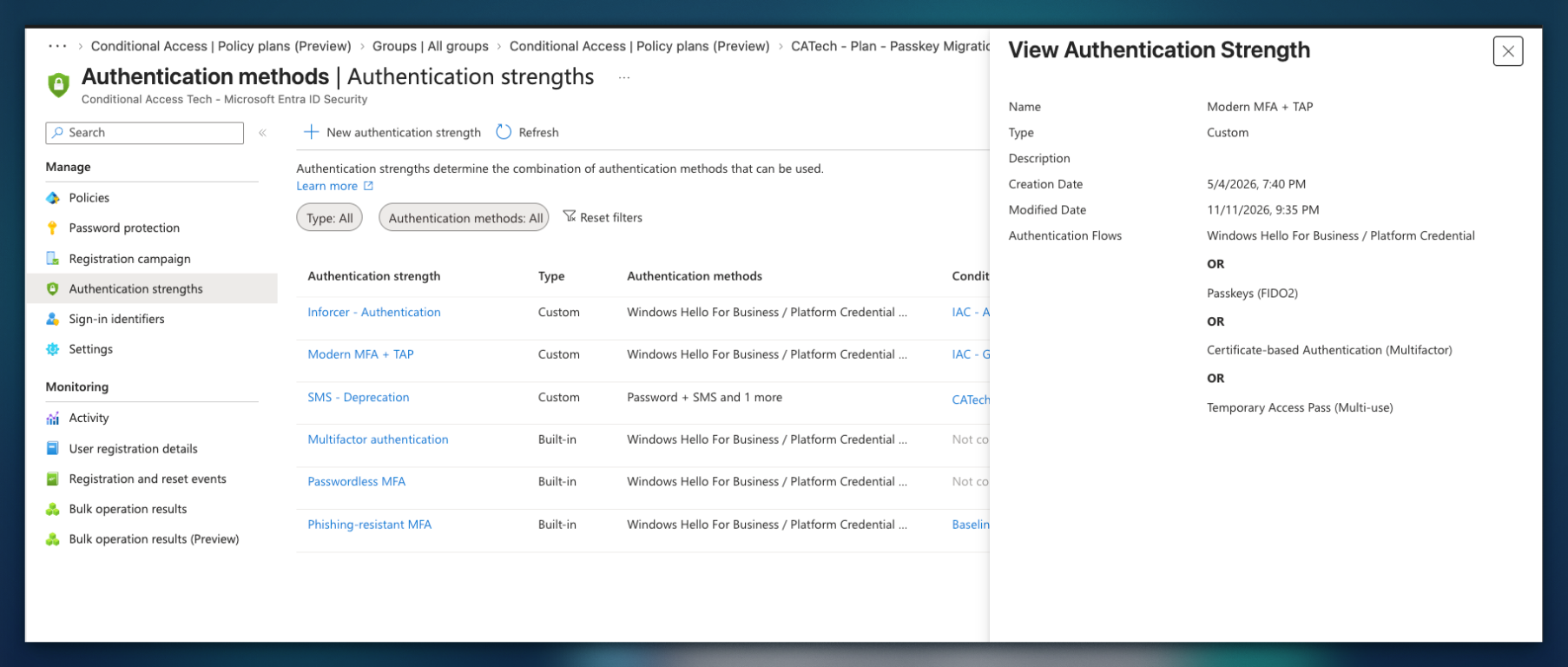
The pictured custom strength includes a multi-use TAP alongside phishing-resistant methods. That makes TAP a deliberate bootstrap exception, not phishing-resistant MFA itself. If this strength is used for All resources, TAP can also grant app access while valid. Scope it deliberately, use short lifetimes and test it alongside other applicable policies. Use the built-in phishing-resistant strength where that exception is not wanted.
Conditional Access evaluates the strength after initial authentication. If a user signs in to Windows with a password, Windows Hello for Business is not the primary sign-in claim and cannot simply be prompted as a second factor. Microsoft says to restart the session, choose Sign-in options and use a method the strength accepts. For a Windows Hello for Business sign-in, choose the PIN or biometrics. Include password-started Windows sessions in report-only testing; do not assume unlocking alone replaces the original sign-in claim.
Prefer the strongest method, then remove weaker options
Check system-preferred authentication and its scope for the users in your pilot. The default, Microsoft managed, applies to first and second factors; the explicit Enabled setting applies to the second factor only. The goal is to prompt with the strongest applicable registered method, but availability depends on the device and browser, and users can choose another allowed method. Preferred does not remove that choice.
Microsoft's current method order lists TAP first and passkey second. The order can change, and the prompt depends on registered methods, the device and browser.
The end goal is to remove weaker authentication methods for each wave after users have a tested strong method and recovery path. Review authentication method policy targeting, existing registrations and other sign-in paths. Use Conditional Access strengths to protect covered resources while you migrate; system-preferred authentication does not override those policies or guarantee every sign-in is protected.
Protect registration without locking users out
A phishing-resistant requirement can create a bootstrap loop if a user must register a passkey before they can satisfy the policies protecting registration. Test security information registration separately from app access. A narrowly scoped registration policy can allow TAP while the ordinary access rules require phishing-resistant MFA. Jan Bakker also describes splitting desktop and mobile policies when the registration flow needs it; that is an optional design to test, not a requirement to use passkeys instead of Windows Hello for Business or a supported Mac platform credential on desktop.
Conditional Access policies combine, so a permissive registration rule does not override a stricter overlapping rule. Check the actual resources, user action and grants together. If TAP is allowed by a rule targeting All resources, it can satisfy that rule for app access as well as registration. Keep TAP short-lived, issue it after identity verification, and test the full path before enforcement.
Read the report-only results
// Log Analytics: who would be blocked by report-only passkey policies
SigninLogs
| where TimeGenerated > ago(7d)
| mv-expand CA = ConditionalAccessPolicies
| where tostring(CA.displayName) startswith "CATech"
| where tostring(CA.result) in ("reportOnlyFailure", "reportOnlyInterrupted")
| summarize Attempts = count(), Apps = make_set(AppDisplayName),
            OS = make_set(tostring(DeviceDetail.operatingSystem))
          by UserPrincipalName, Policy = tostring(CA.displayName)
| order by Attempts desc
Replace CATech with the prefix used by your Conditional Access rule or policy names; this example follows the naming shown in my plan. The query searches policy names, not group names, and a shared prefix may also match unrelated rules. No Log Analytics workspace? The Conditional Access insights and reporting workbook and the sign-in log filter on report-only result let you review results per policy.
Registration: TAP, campaigns and where users start
For Authenticator passkeys, starting in the phone app is a useful way to avoid cross-device registration problems. Microsoft supports attested cross-device registration on Android; on iOS, attested passkeys must be registered directly in Authenticator. Test your supported browsers, devices and Conditional Access policies before choosing a single path for users.
| TAP setting | Default | Recommendation |
|---|---|---|
| Default lifetime | 1 hour | 1 to 8 hours for scheduled onboarding sessions |
| One-time use | False | Leave multi-use available. One-time passes give users 10 minutes and caused loops in Jan Bakker's testing |
| Length | 8 | 8 is fine, the pass is short-lived |
| Who can issue | Authentication Administrator for users, Privileged Authentication Administrator for admins | |
Common blockers
Start with the Conditional Access tab in the sign-in log, then check the device, browser and registration flow.
Do not overlook legacy access
Inventory VPNs, remote desktop gateways, Wi-Fi and other RADIUS or NPS-backed flows alongside your cloud apps. A passkey policy for an Entra-connected app does not by itself prove that a separate legacy sign-in path is protected by the same strength. Test each path end to end, record its supported methods and owner, and agree compensating controls and an expiry date for exceptions.
Where suitable, assess moving an on-premises application behind Microsoft Entra Private Access or another modern authentication path. Validate application, client and licensing compatibility before assuming that a gateway or RADIUS workflow can be replaced.
Servers and RDP: which sign-in are you trying to protect?
There are two separate tests: signing in to establish the remote desktop connection, and using a passkey in an app inside an existing session. A green result for one does not prove the other works. The local OS, remote desktop client, target OS and join state all matter. Microsoft publishes a remote desktop support matrix; check it against the versions and configuration you actually run.
| Path | What to test |
|---|---|
| Entra-connected server | Microsoft lists FIDO support for session initiation on Entra joined or hybrid joined Windows Server 2022 and later, subject to client and tenant requirements. For Arc-managed standalone/workgroup servers, the matrix requires Entra join and Windows Server 2025 or later. Test your actual RDP client and target configuration. |
| Azure VM with Entra sign-in | For Entra-authenticated VM sign-in, a policy targeting Microsoft Azure Windows Virtual Machine Sign-in can require phishing-resistant MFA. A client unable to satisfy the strength can receive “The sign-in method you're trying to use isn't allowed.” For the documented passwordless web-account flow, check supported session hosts: Windows 11 with KB5018418 or later, Windows 10 20H2+ with KB5018410 or later, Server 2022 with KB5018421 or later, or Server 2025+. Other VM and client prerequisites apply. Locking this remote session disconnects it because the lock screen cannot use Entra tokens or FIDO keys; reconnect to trigger sign-in again. |
| AD-only server | Microsoft's matrix does not list FIDO for RDP session initiation or in-session FIDO on an on-premises domain-joined-only Windows Server. Entra-issued Kerberos SSO to supported on-premises resources does not automatically add passkey support to an RDP logon. |
| Passkey inside an existing session | WebAuthn redirection can send an in-session request to a supported local client. The client, host and redirection policy must all allow it. Microsoft's Windows App feature matrix lists preview support for Azure Virtual Desktop and Windows 365 on macOS 11.4.2+, iOS 11.3.7+ and Android 11.0.0.119+ (Windows App versions). It is limited to the listed Entra sign-in endpoints. On Android the passkey must be in a software provider on that device, such as Authenticator; external security keys and QR passkeys on another device are not supported. The older RDP planning matrix differs, so check both sources and test your exact target and versions. |
| Jump server or nested session | Do not assume the second hop redirects WebAuthn because the first one works. Test each hop and client. Microsoft notes that Windows Server jump servers can impede FIDO and recommends considering certificate-based authentication for that scenario. |
If Windows Hello for Business or Platform SSO is unavailable, check whether a supported FIDO2 security key attached to the local client or a local passkey can serve the specific Entra sign-in. For AD-backed RDP, a smart card or Windows Hello for Business with an appropriately deployed certificate and smart-card redirection may be an option. Microsoft's Azure VM guidance lists certificate trust, not key trust, for its credential-based Windows Hello for Business path; its troubleshooting text describes key trust differently. Verify the exact connection mode and current documentation. Certificate-based RDP needs PKI, client and server support; it is a separate design, not an automatic fallback. Test an alternative admin workstation or access path before taking the existing one away.
The QR code is on my screen. Why does proximity fail?
A phone passkey's cross-device flow needs Bluetooth and internet on both the phone and the device actually handling the WebAuthn request. In a supported RDP session with WebAuthn redirection working, that request is handled on your local client, so the phone needs to be near your laptop, not the server in a datacenter. Confirm the prompt is redirected rather than assuming it is.
If the request stays on the remote machine, your phone can scan the QR code displayed through RDP but is not near the remote machine's Bluetooth radio. Scanning the code alone does not satisfy proximity. Use a supported redirection path or another supported credential; don't weaken an admin policy just to get past the prompt. For Azure Virtual Desktop, check both host policy and host-pool settings: a more restrictive setting can disable redirection.
RADIUS and NPS are a different problem
Microsoft's NPS extension performs AD DS primary authentication and then invokes an Entra MFA second factor. Its documented methods depend on the RADIUS authentication protocol and include notifications and, where supported, verification codes; the flow is not a WebAuthn passkey prompt. The extension does not support number matching. TOTP and simple approval are not phishing-resistant, so record the exposure, restrict access and plan a supported migration rather than calling that path passkey-protected.
For each VPN, gateway or Wi-Fi service, identify whether it can use a modern Entra sign-in directly, whether certificate-based access is supported, or whether another vendor-supported approach is needed. A separate Entra Conditional Access policy on a cloud app is not evidence that the RADIUS exchange enforces the same authentication strength.
Nate recommends looking for these paths in Entra sign-in logs by filtering for a resource ID containing radius. Inspect the results and their Conditional Access tab: NPS extension events can show Not applicable. Use the logs alongside your gateway inventory, since the absence of a match does not prove that every RADIUS path is accounted for.
| Blocker | What happens | Fix |
|---|---|---|
| OS too old | No passkey option in Authenticator | Authenticator passkeys need iOS 17+ or Android 14+. Use FIDO2 keys for devices you cannot upgrade |
| Android work profile | Passkey works in one profile only | Register one passkey per profile (Work and Personal) |
| Samsung + Google Password Manager | No native synced passkey | Use Authenticator or a FIDO2 key. Samsung Pass is not in Microsoft's supported list |
| MAM / app protection on All resources | "Require approved client app" or "Require app protection policy" blocks Authenticator registration | Scope the Conditional Access policies to specific apps, or exclude Microsoft Authenticator Credential Registration (6aa00308-ea33-4caa-90d6-ae905d8cb51b) once provisioned. Nate also describes excluding Microsoft App Access Panel, AAD Reporting and Azure Credential Configuration Endpoint from the app-protection Conditional Access policy. Assess the broader impact and test the registration flow before using those exclusions. |
| Require compliant device | Same-device enrollment in Authenticator breaks on unmanaged phones | Fully MDM-managed devices can satisfy it; BYOD needs the exclusion above |
| Cross-device QR fails | Laptop never sees the phone | Bluetooth and internet on both devices; allow cable.ua5v.com (Android) and cable.auth.com (iOS) |
| "Passkey not registered" | Password manager offered a synced passkey to a device-bound profile | Expected. User registers in Authenticator or on a key |
| Safari + attestation | Creation fails in Safari | Register in Authenticator directly on iOS |
| UPN change | Existing passkey stops matching | Delete and re-register |
| Attestation outage | Registration fails when Apple App Attest or Google Play Integrity is down | Retry later; nothing to fix in the tenant |
After go-live: take away the fallbacks
Adding passkeys does not remove risks from weaker methods that remain available. Review which methods can satisfy each sensitive access policy, then retire fallbacks where users have a tested recovery path.
Remove weaker methods
After each wave has a tested alternative and recovery path, remove SMS and voice where they are no longer needed, starting with Profile A groups. Microsoft's retirement starts on 1 February 2027 for most users and 1 July for Global Administrators and external users; both are phased rollouts. For admins, review push and OTP as well, and confirm the remaining paths meet your device-bound requirements.
Make every elevation phishing-resistant
Use a Conditional Access policy targeting a PIM authentication context to require phishing-resistant MFA, and enforce any device-bound passkey requirement separately through the user's effective passkey profiles. The strength can also accept Windows Hello for Business, a qualifying platform credential or multifactor certificate-based authentication. A previously satisfied requirement can be reused within a session. Microsoft's guidance for requiring reauthentication on activation is to set Sign-in frequency: Every time on the Conditional Access policy targeting that context. A 10-minute window still applies: another role activation in that window is not prompted to reauthenticate again. Test this with your actual roles and apply appropriate controls for Azure management, admin security info registration and sensitive apps too.
Lock down registration
Once a group is live, tighten its Register security information policy so adding a new passkey needs a passkey or a TAP, not password plus push. Otherwise an attacker who phishes the weaker method registers their own passkey and you have upgraded them. Alert on new passkey registrations for Profile A users in the audit log.
Registration controls are only half the job. Monitor new authentication methods and make sure someone receives and investigates the alert. A registration event does not prove malicious activity, but an unexpected passkey on an admin account deserves a fast response. Check the audit and related sign-in logs, confirm the registration with the user through a trusted channel, and follow your incident process if they did not authorize it. Contain the account and sessions and remove the unauthorized method as appropriate, while preserving a safe recovery path.
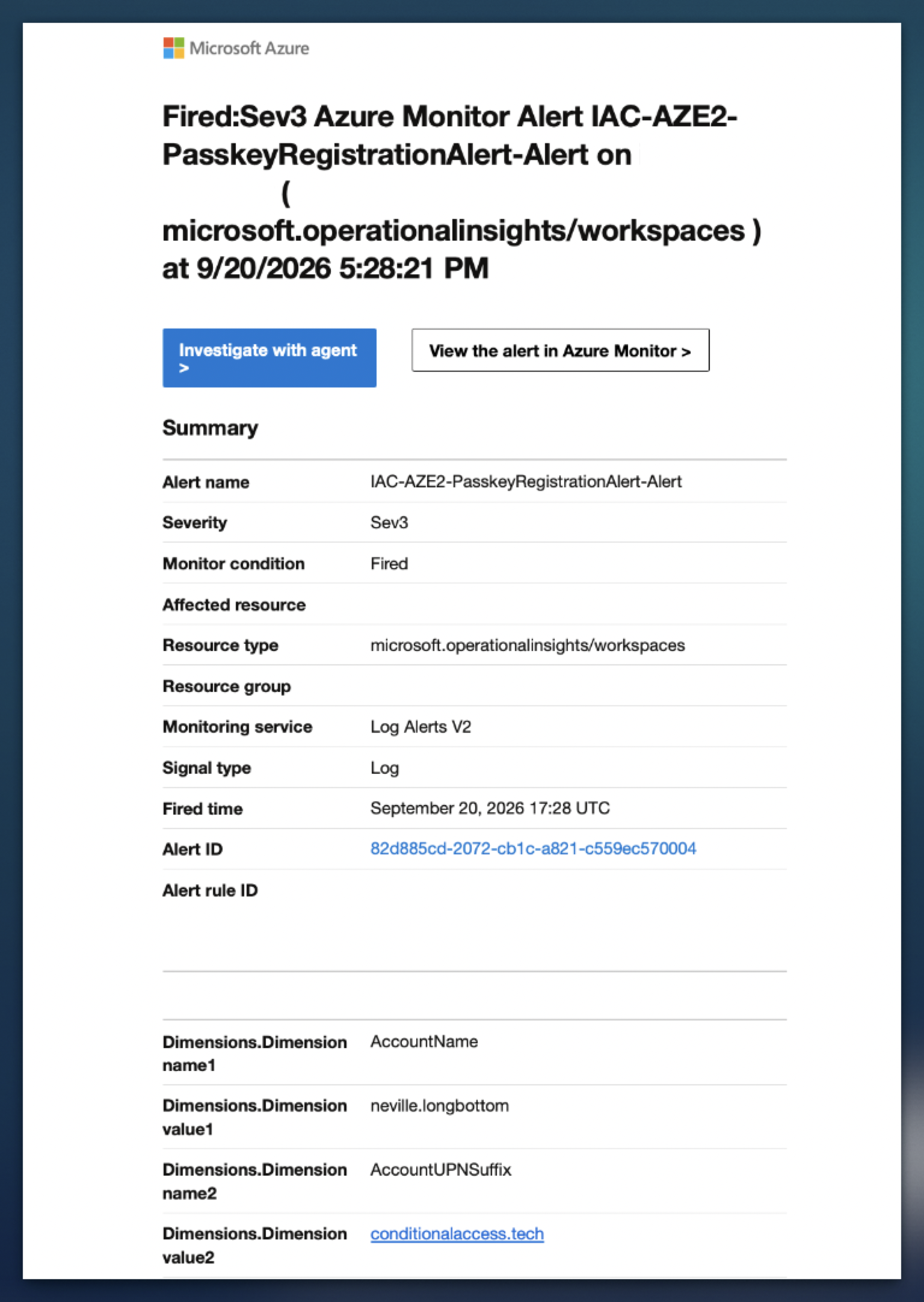
Nathan McNulty's MFA registration notification samples offer another approach: a Microsoft Sentinel analytics rule and Logic App notify the user when a supported authentication method is registered. Nathan's documentation also discusses a scheduled Graph-based alternative. The samples cover more than passkeys and have their own prerequisites and limitations; review them before deployment. They are separate from the Azure Monitor alert pictured above.
Test your detection with device-bound and synced passkey registrations: they can produce different audit events, and companion events can cause duplicate notifications. Confirm audit logs reach your monitoring destination, test the end-to-end notification, and decide who responds when a user reports a registration they do not recognize.
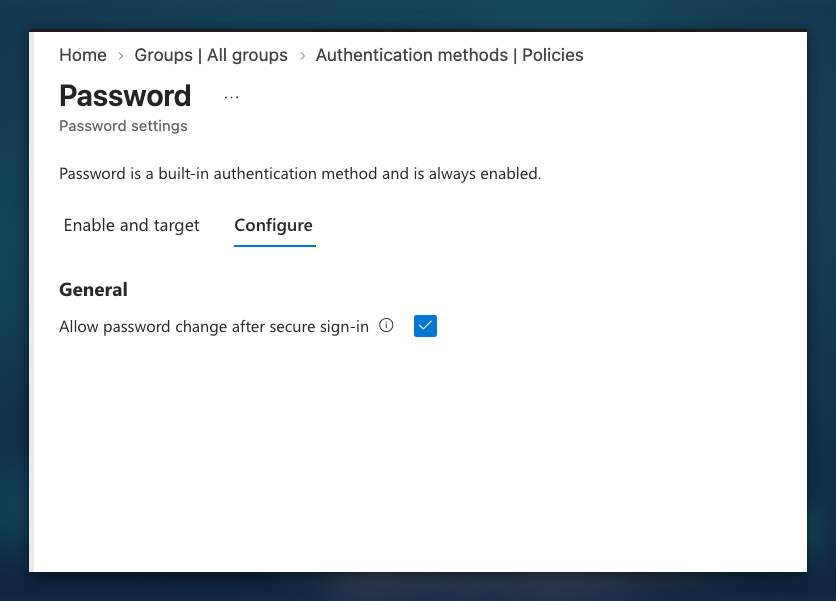
Let passwordless users change their password without knowing it
Once a wave is signing in with phishing-resistant methods, users may forget their passwords. That is the point, until a legacy app or on-premises resource asks for one. The Password method has a setting that can help; it is separate from SSPR.
| Setting | Detail |
|---|---|
| Where | Entra ID > Authentication methods > Policies > Password > Configure, tick Allow password change after secure sign-in. Graph beta: allowPasswordChangeAfterSecureSignIn on the Password method configuration |
| What it does | A user who signed in with a strong credential sets a new password in My Sign-Ins without entering the current one |
| User path | mysignins.microsoft.com/security-info/password/change |
| Strong credentials | MC1437671 lists passkey, FIDO2 security key and Windows Hello for Business. Jan Bakker's post lists passkey, certificate-based authentication and Authenticator passwordless phone sign-in. Test the methods you use |
| Default | Off |
| Scope | Tenant-wide. No user or group targeting |
| Rollout | GA, Worldwide and GCC, end of October to end of November 2026 |
| Licence | Entra ID P1 or P2 (per Jan Bakker) |
| Hybrid | Jan Bakker reports the new password is written back to Active Directory when password writeback is on. Microsoft has not documented this yet, so test with a synced user before you rely on it |
Evaluate it once your first wave is ready. The setting is tenant-wide, so review its impact on every user who can meet the strong-sign-in requirement before enabling it. It is not SSPR: users do not need to register for SSPR to use it.
Turn off password expiration
Review password expiration against your organisation's policies, regulatory obligations and hybrid requirements. Where rotation is not required, Microsoft recommends avoiding periodic password changes without evidence of compromise; keep breached-credential detection and a tested response in place.
Retire SSPR, replace it with account recovery
SSPR resets a password, so review whether each wave still needs it for legacy or hybrid access. Do not remove it until you have tested an alternative for users who lose their credentials. Microsoft Entra account recovery is one option: it uses an identity verification provider and Verified ID to issue a TAP for re-enrollment. Start in Evaluation mode, review the privacy implications and confirm licensing, provider costs, availability and hybrid requirements before relying on it.
Checklist
- Export registration details and bucket every account
- Confirm what the auto-migrated Default passkey profile allows
- Create groups: separate pilot groups for each profile, Privileged, HighRisk, Users-Pilot and Users
- Create a Conditional Access policy plan with shared break-glass and passkey exception groups; review and monitor exception membership
- Build Profile A (device-bound, attested, AAGUID allow list) and Profile B (device-bound + synced)
- Enable TAP, set lifetime, decide on one-time use
- Set registration campaign to the behaviour you want
- Provision the Authenticator Credential Registration service principal and review MAM / compliance policies on All resources
- Confirm Authenticator meets Microsoft's minimum version where you use a profile allowing both device-bound and synced passkeys. Plan updates for managed and unmanaged devices before rollout
- Choose phishing-resistant and bootstrap authentication strengths; use effective passkey profiles, not a strength name, to control device-bound versus synced
- Check system-preferred authentication, its group scope and Microsoft's method order; test that weaker methods cannot satisfy the enforced strength
- Inventory and test legacy, VPN and RADIUS paths; assign owners and review dates to exceptions
- Wave 0 pilot across every OS, including Android work profile and Samsung
- For each wave rule: report-only at least 7 days, review failures, go live when ready and remove weaker methods after testing recovery
- Review and enable the final All users rule when ready; retain only approved, reviewed exclusions and test other policies and sign-in paths
- Protect PIM activation with a phishing-resistant authentication context and verify the user's effective device-bound profile separately
- Test registration alerts for device-bound and synced passkeys, and agree who investigates unexpected registrations
- Turn on Allow password change after secure sign-in once the first wave is passkey-only
- Review password expiration and SSPR requirements; pilot and validate an account recovery path before removing existing options
- Brief help desk on lost-phone recovery before September device launches
Sources and further reading
Microsoft Learn is the starting point for current requirements. The community articles, videos and tools add rollout experience and useful ways to explore passkeys.
Microsoft Learn
- Enable passkeys (FIDO2)
- Configure passkey profiles, attestation and allowed providers; check requirements and known issues.
- Support passkeys in Authenticator
- Plan Authenticator passkeys, including AAGUIDs and Conditional Access and app protection considerations.
- Temporary Access Pass
- Configure TAP for onboarding and recovery, and review its restrictions, including registration interrupt mode.
- Account recovery overview
- Understand identity verification, Verified ID and evaluation mode for account recovery.
- Enable account recovery
- Review licensing and configuration requirements for Microsoft Entra account recovery.
- Plan phishing-resistant passwordless
- Work through deployment prerequisites, licensing and stakeholder planning.
- System-preferred authentication
- Review how Entra selects preferred sign-in methods and how the setting interacts with Conditional Access.
- Authentication strengths
- See which methods satisfy each built-in strength and how to create custom strengths.
- Authentication strengths for external users
- Review authentication strengths and cross-tenant trust for guest access.
- Conditional Access policy plans
- Learn how shared conditions and exclusions combine with individual rollout rules.
- Passkey FAQ
- Answers to common questions about passkey types, requirements and supported scenarios.
- Entra passkeys on Windows
- Windows passkey storage, AAGUIDs and attestation limitations.
- Sign in with Authenticator passkeys
- Walk through same-device and cross-device sign-in using an Authenticator passkey.
- Remote Desktop phishing-resistant support
- Check supported Remote Desktop clients and hosts for session sign-in and in-session authentication.
- Windows App feature comparison
- Compare redirection support, including WebAuthn, across Windows App platforms.
- Configure WebAuthn redirection
- Configure WebAuthn redirection for supported Azure Virtual Desktop sessions.
- Entra sign-in to Azure Windows VMs
- Review VM sign-in requirements, Conditional Access and remote-session limitations.
- Plan Windows Hello for Business
- Plan a separate Windows Hello for Business deployment and select a trust model.
- Cloud Kerberos trust
- Configure hybrid access to on-premises resources using Windows Hello for Business cloud Kerberos trust.
- Windows Hello for Business provisioning
- Understand the credentials and steps involved in provisioning Windows Hello for Business.
- Windows Hello for Business RDP sign-in
- Review certificate trust and smart-card redirection requirements for RDP.
- PIM role settings
- Configure role activation requirements, including authentication context and reauthentication.
- Combined registration
- Review the combined security information registration experience and available methods.
- NPS extension for Entra MFA
- Understand the RADIUS authentication flow and supported second factors.
Microsoft updates
- Microsoft Security Blog: Passkeys are the default authentication method
- Microsoft's announcement on passkeys and the planned retirement of SMS and voice methods.
- MC1221452: Passkey profiles
- Message Center update on passkey profile availability and migration.
- MC1450133: Passkeys as a first MFA method
- Message Center update on registering a passkey as a user's first MFA method.
- MC1459133: B2B guest passkeys
- Message Center update on passkey registration for guest users.
- MC1540327: SMS and voice
- Message Center update on the phased retirement of SMS and voice authentication.
Community
- Corbado: Enterprise passkey deployment challenges and solutions
- Looks at Entra passkey enrollment, device-bound versus synced credentials, recovery and rollout challenges.
- Corbado: WebAuthn vs. CTAP vs. FIDO2
- Explains the roles of the WebAuthn API, CTAP and FIDO2 in passkey authentication.
- Jan Bakker: Before rolling out Authenticator passkeys
- Practical registration issues involving Android, compliant devices and app protection policies.
- Jan Bakker: You shall not pass(key)!
- A Conditional Access design with a bootstrap strength and a rollout test matrix.
- Nate Hutchinson: Planning your passkey rollout in Microsoft 365
- A device-bound-first rollout with app protection exclusions, downgrade risks and RADIUS discovery.
- T-Minus365: Microsoft 365 passkeys not working
- Passkey failure scenarios and recovery steps to help with troubleshooting.
YouTube
- Tim Cappalli: Passkey Mythbusters
- Short takes on common passkey misunderstandings from Authenticate 2025.
- Identity Roundtable: Passkeys, Pitfalls & Tenants Gone Wild
- A discussion about passkeys and identity challenges in Microsoft Entra tenants.
- Threatscape: Rolling Out Passkeys in Entra
- A discussion of rolling out passkeys in Microsoft Entra without disrupting users.
- John Savill: Where are the keys in passkeys?
- An explanation of the keys behind passkey authentication and where they reside.
- Jon Hope: Phone-to-phone passkey registration
- A walkthrough of using an existing phone to authenticate while registering a passkey on a new phone.
Tools and samples
- Passkeys.directory
- A community-driven directory of websites, apps and services that support passkey sign-in.
- Jan Bakker: Microsoft 365 Passkey Guide
- Compare storage options and explore AAGUIDs and registration campaigns.
- Nathan McNulty: MFA registration notifications
- Sample notifications for monitoring authentication method registrations and informing users.